| Punctual Dicom Workstation 4.0 |
You can download the Punctual Dicom Workstation as is for free.
If you need a customized version (e.g. language other than English or new functionality)
contact us for a quote.
|
|
| Download |
|
Download the complete installation package
here.
|
|
| Overview |
NOTE: If you already have an earlier version
you have to uninstall the previous version from Control Panel -> Add/Remove Programs.
This installation package contains the following components:
- Microsoft .NET Framework 4.6
- Microsoft SQL Server 2014 Express
- The application installation package.
Microsoft .NET Framework and SQL Server must be installed only if they are not present already,
as part of the Operation System or installed by other applications.
Microsoft .NET Framework 4.6 is built into the Windows 10 Operation System,
so it doesn't need to be installed on Windows 10.
|
|
| System Requirements |
- Supported Operating Systems: Windows 7 64-bit; Windows 8 64-bit; Windows 8.1 64 bit; Windows 10 64-bit
- Intel Pentium or compatible 1 gigahertz (GHz) or higher processor
- 2 gigabytes (GB) of RAM (4 GB or more for 3D image processing)
- 250 megabytes (MB) of available hard disk space
- Video card compatible with DirectX 11 (for 3D image processing only)
|
| Step by step installation instructions |
IMPORTANT: You must have administrator privileges on that computer to complete the installation.
- Download the installation package.
- Open the archive somewhere on your computer.
-
Double click on the setup.exe file to launch the setup program.
Re-launch the setup.exe installer in order to continue the installation if you reboot the computer during the installation.
- The setup program will detect if you have the prerequisites installed.
-
If the Microsoft .NET Framework 4.6 does not exist yet on your computer you will have the "Install the .NET framework" button enabled and all the other buttons disabled.
- Click on the "Install the .NET Framework" button to start the .NET Framework 4.6 installation.
- Follow the Microsoft .NET Framework 4.6 wizard installation steps.
-
If the Database Engine does not exist yet on your computer you will have the "Install the Database Engine" button enabled and all the other buttons disabled.
- Click on the "Install the Database Engine" button to start the database engine installation.
- Follow the SQL Server 2014 Express wizard installation steps.
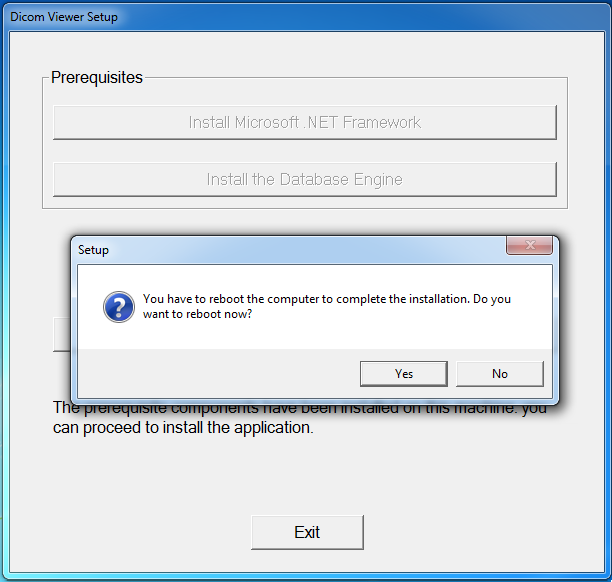
- Reboot the computer.
-
If the "Install the program" button is enabled that means that the prerequisites have been installed successfully and you can proceed to install the application.
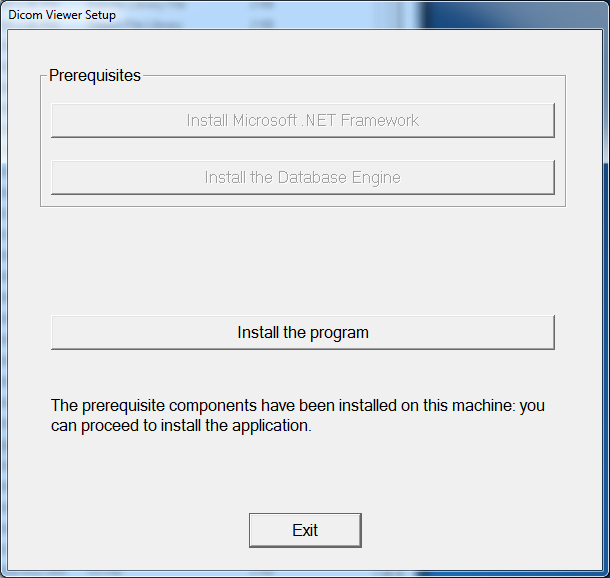
- Click on the "Install the program" button to launch the application installation.
- Follow the wizard installation steps as following.
-
The Welcome page
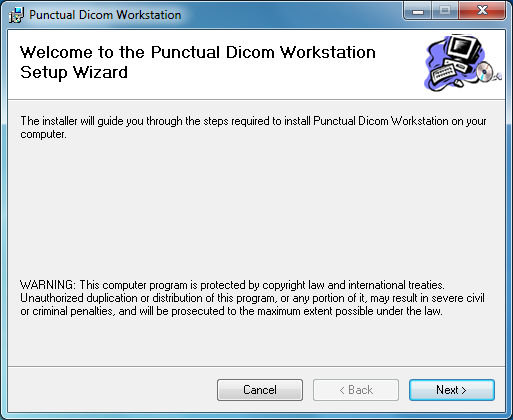
Click "Next" to advance to the next page.
-
The License page
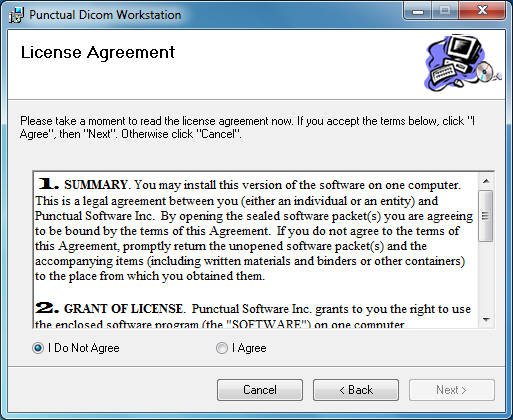
Select to accept the license or click Cancel to exit.
-
The Installation folder page
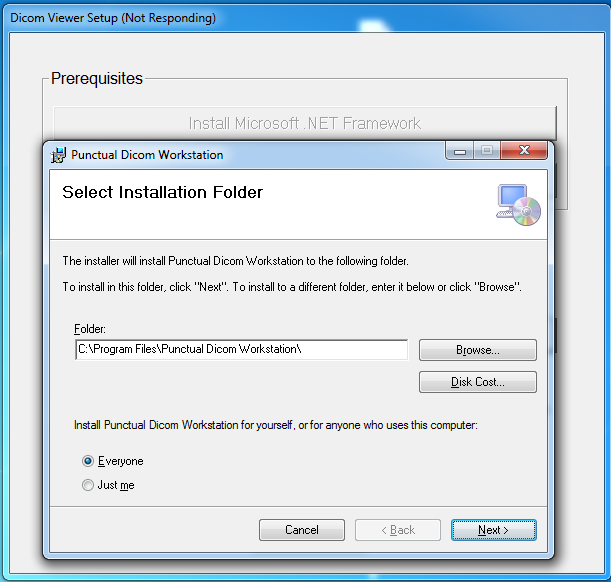
Accept the default installation folder or specify another location.
-
The Confirm Installation page
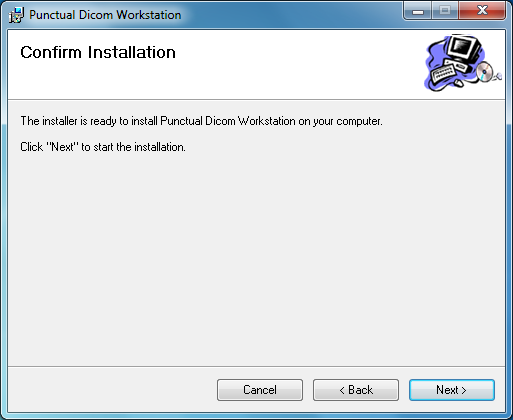
Click "Next" to start the installation.
-
The File extension association page
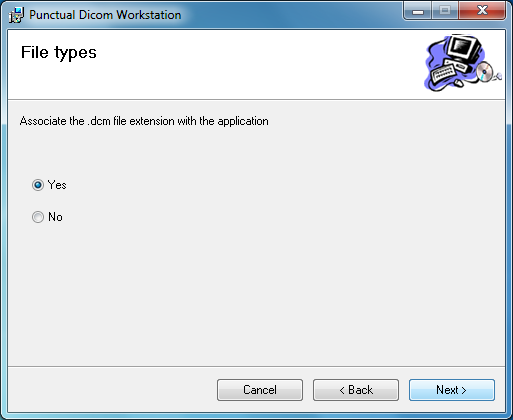
Choose "Yes" to associate the .dcm file extension with the application.
The user will be able to automatically open files with the .dcm extension from the Windows Explorer.
Choose "No" if you don't want to associate the .dcm file extension with the application.
-
The Installation in progress page
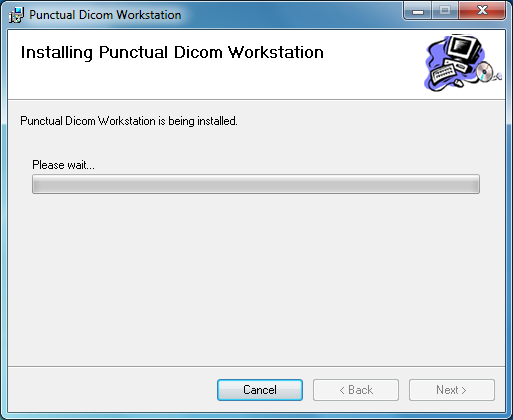
The installation started, please wait ...
-
The Database Installation in progress window
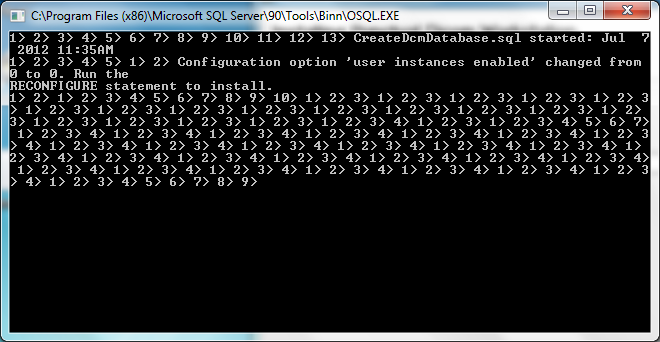
The database installation started, please wait ...
-
The Installation Complete page
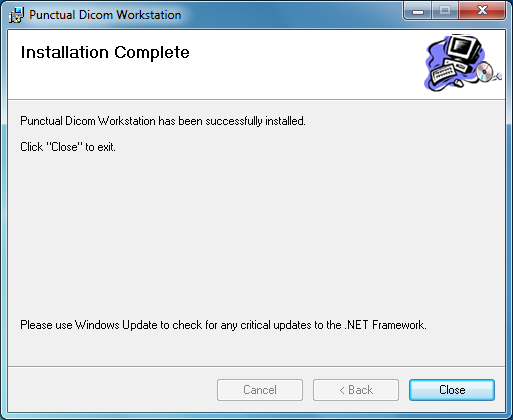
The installation is complete, all you have to do is reboot the computer.
-
Reboot the computer.
|
| Firewall |
As designed, a firewall will block any communication that was not explicitly allowed.
If you have an active firewall on your computer, you have to disable or
configure it to allow the communication with other computers and between the application components.
The ViewerUI.exe, DicomServerService.exe and QueryRetrieve.exe processes need
to be trusted by the firewall in order to enable the DICOM comunication with other nodes.
If you suspect that you have communication problems because of the firewall,
you can temporary disable it, resolve any other issues, configure the firewall and reactivate it.
|
|
| Troubleshooting |
|
For help with technical issues visit our Technical support page.
|
|
|